PySide6 弹窗对话框(一):QMessageBox、QInputDialog
Qt 提供了几个开箱即用的标准对话框,本篇讲其中使用频率最高的两个:QMessageBox(提示与确认)和 QInputDialog(单个值的输入)。

QMessageBox 和 QInputDialog 都属于 Qt 标准模态对话框,继承自 QDialog:调用 exec() 阻塞主窗口,必须用户处理弹窗后才能继续操作主界面;需要传入 parent 父控件,用来控制弹窗居中、窗口归属、跟随父窗口生命周期;适合轻量、单次交互。

QMessageBox

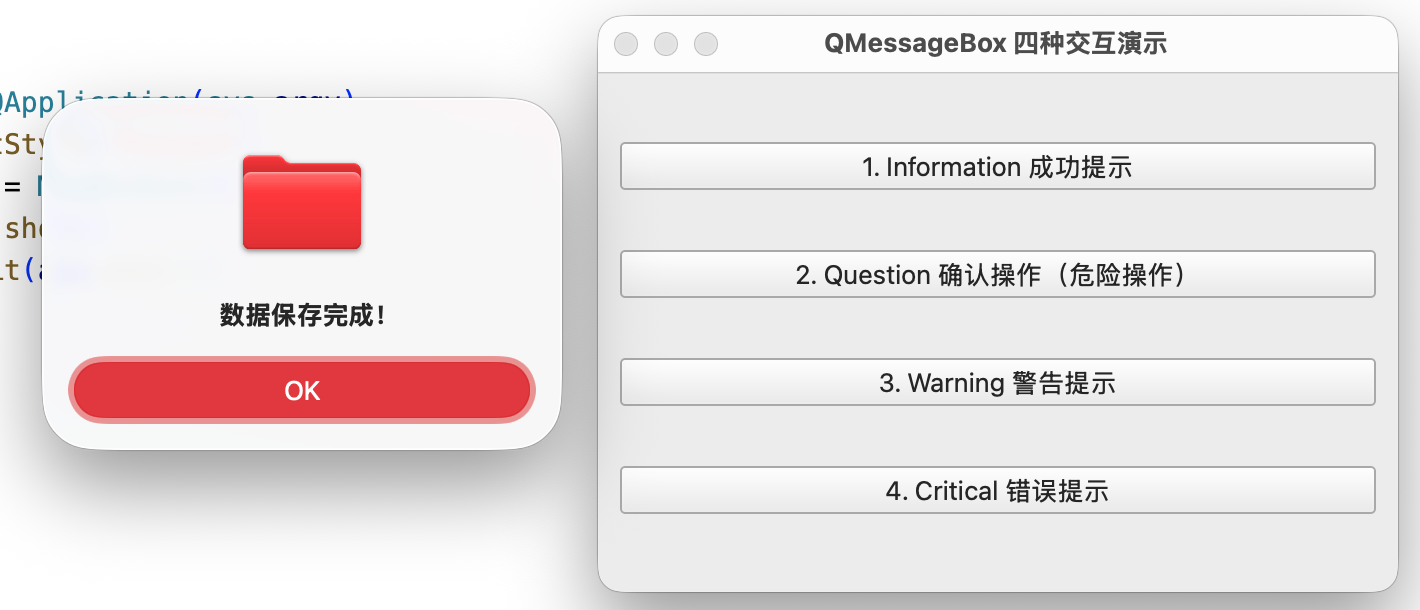
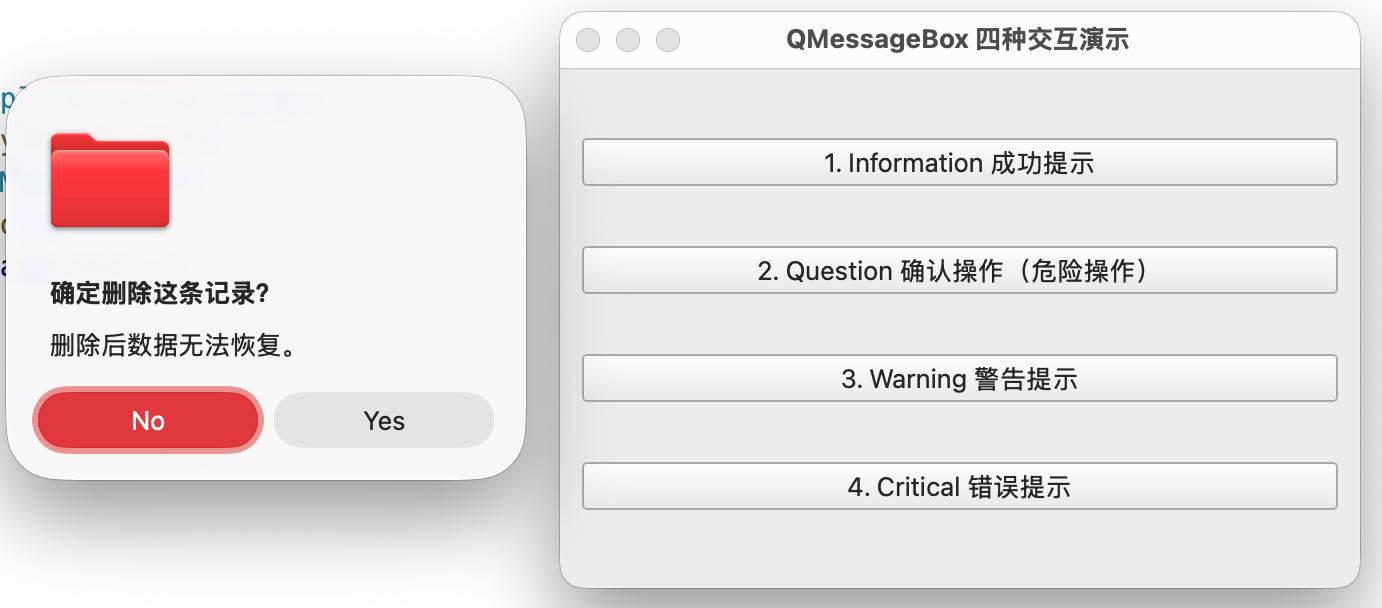
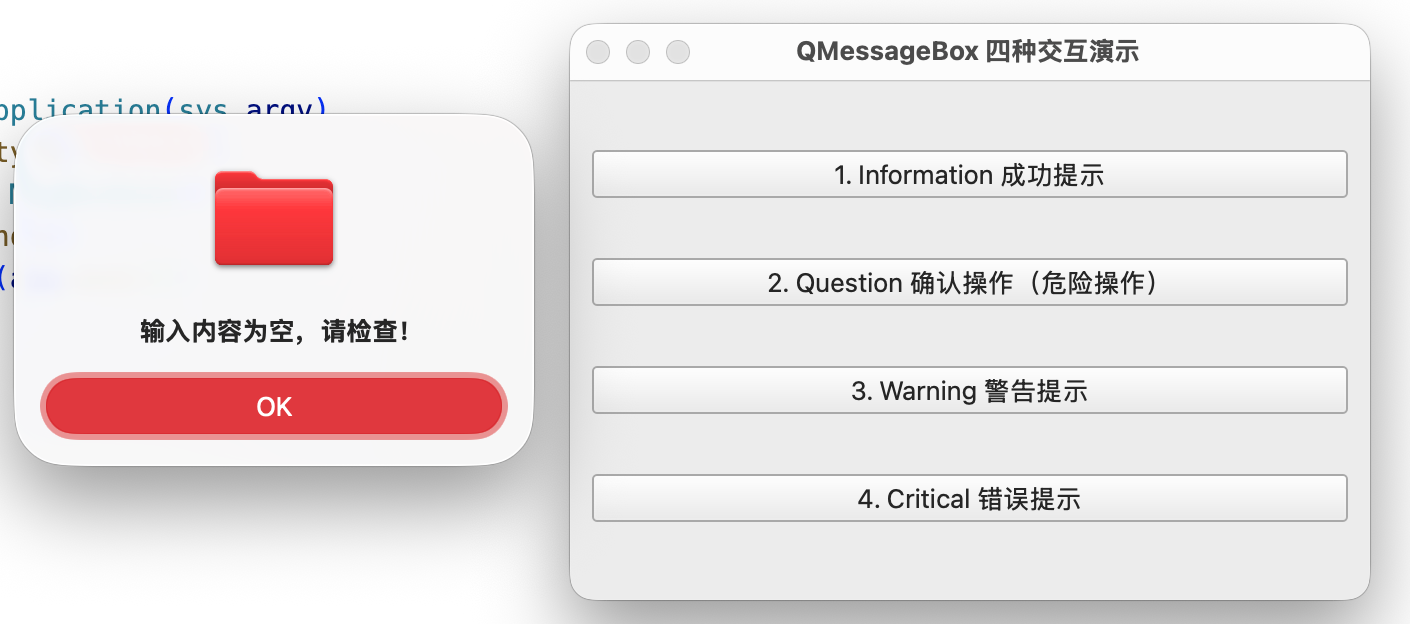
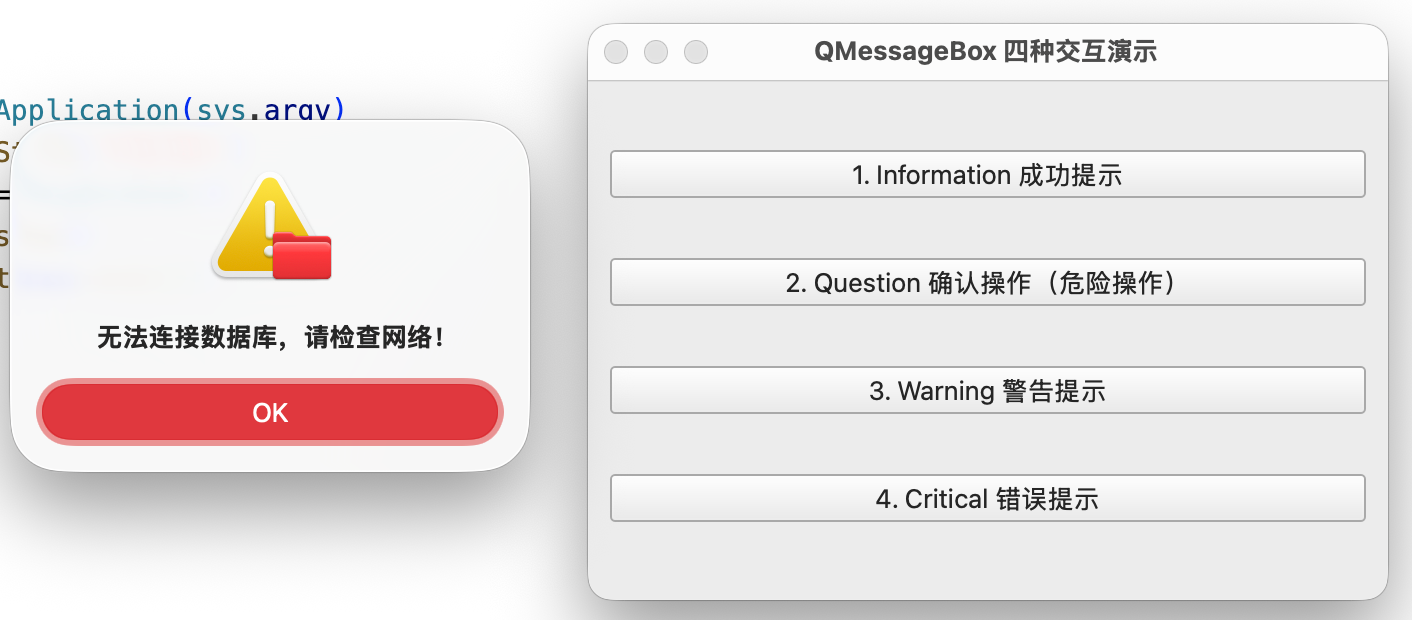
QMessageBox 承担四种交互逻辑,如告知结果、请求确认、警告风险、报告错误,对应的方法如下:

  • information():告知成功、说明状态,返回值为 Ok。
  • question():请求确认,返回值为 Yes 或 No。
  • warning():提示风险、校验失败,返回值为 Ok。
  • critical():报告错误、致命异常,返回值为 Ok。
 1
 2
 3
 4
 5
 6
 7
 8
 9
10
11
12
13
14
15
16
17
18
19
20
21
22
23
24
25
26
27
28
29
30
31
32
33
34
35
36
37
38
39
40
41
42
43
44
45
46
47
48
49
50
51
52
53
54
55
56
57
58
59
60
61
62
63
64
65
import sys

from PySide6.QtWidgets import (QApplication, QWidget, QPushButton, QVBoxLayout,
                               QMessageBox)
from PySide6.QtCore import Slot


class MsgBoxDemo(QWidget):
    def __init__(self):
        super().__init__()
        self.setWindowTitle("QMessageBox 四种交互演示")
        self.resize(400, 260)
        layout = QVBoxLayout(self)

        self.btn_info = QPushButton("1. Information 成功提示")
        self.btn_question = QPushButton("2. Question 确认操作(危险操作)")
        self.btn_warn = QPushButton("3. Warning 警告提示")
        self.btn_critical = QPushButton("4. Critical 错误提示")

        layout.addWidget(self.btn_info)
        layout.addWidget(self.btn_question)
        layout.addWidget(self.btn_warn)
        layout.addWidget(self.btn_critical)

        self.btn_info.clicked.connect(self.show_info)
        self.btn_question.clicked.connect(self.show_question)
        self.btn_warn.clicked.connect(self.show_warning)
        self.btn_critical.clicked.connect(self.show_critical)

    @Slot()
    def show_info(self):
        box = QMessageBox(self)
        box.setIcon(QMessageBox.Icon.Information)
        QMessageBox.information(self, "操作成功", "数据保存完成!")

    @Slot()
    def show_question(self):
        box = QMessageBox(self)
        box.setWindowTitle("确认删除")
        box.setIcon(QMessageBox.Icon.Question)
        box.setText("确定删除这条记录?")
        box.setInformativeText("删除后数据无法恢复。")
        box.setStandardButtons(QMessageBox.StandardButton.Yes | QMessageBox.StandardButton.No)
        box.setDefaultButton(QMessageBox.StandardButton.No)
        box.setEscapeButton(QMessageBox.StandardButton.No)
        ret = box.exec()
        if ret == QMessageBox.StandardButton.Yes:
            print("✅ 执行删除")
        else:
            print("❌ 取消删除")

    @Slot()
    def show_warning(self):
        QMessageBox.warning(self, "校验警告", "输入内容为空,请检查!")

    @Slot()
    def show_critical(self):
        QMessageBox.critical(self, "连接失败", "无法连接数据库,请检查网络!")


app = QApplication(sys.argv)
app.setStyle("Fusion")
window = MsgBoxDemo()
window.show()
sys.exit(app.exec())

演示效果如下:

在 Mac 上,调用 QMessageBox 的 4 个静态方法时,图标 Icon 设置无效,只能显示默认图标。

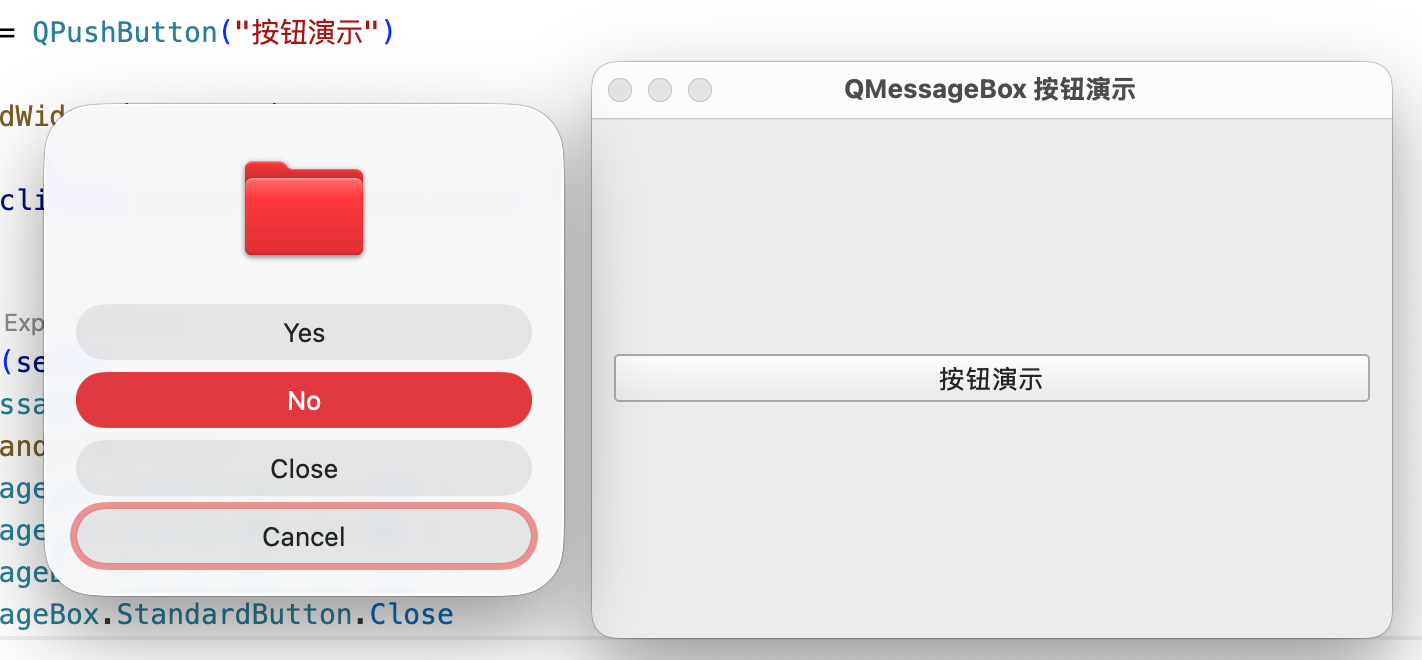
QMessageBox 上的按钮按 QMessageBox.StandardButton 枚举设置,默认按钮为 Ok,多个按钮用 | 运算符组合,如下:

 1
 2
 3
 4
 5
 6
 7
 8
 9
10
11
12
13
14
15
16
17
18
19
20
21
22
23
24
25
26
27
28
29
30
31
32
33
34
35
36
37
38
import sys

from PySide6.QtWidgets import (QApplication, QWidget, QPushButton, QVBoxLayout,
                               QMessageBox)
from PySide6.QtCore import Slot


class MsgBoxDemo(QWidget):
    def __init__(self):
        super().__init__()
        self.setWindowTitle("QMessageBox 按钮演示")
        self.resize(400, 260)
        layout = QVBoxLayout(self)

        self.btn = QPushButton("按钮演示")

        layout.addWidget(self.btn)

        self.btn.clicked.connect(self.show_btns)

    @Slot()
    def show_btns(self):
        box = QMessageBox(self)
        box.setStandardButtons(
            QMessageBox.StandardButton.Yes | 
            QMessageBox.StandardButton.No | 
            QMessageBox.StandardButton.Cancel |
            QMessageBox.StandardButton.Close
        )
        box.setDefaultButton(QMessageBox.StandardButton.No)
        box.exec()


app = QApplication(sys.argv)
app.setStyle("Fusion")
window = MsgBoxDemo()
window.show()
sys.exit(app.exec())

演示效果如下:

QInputDialog

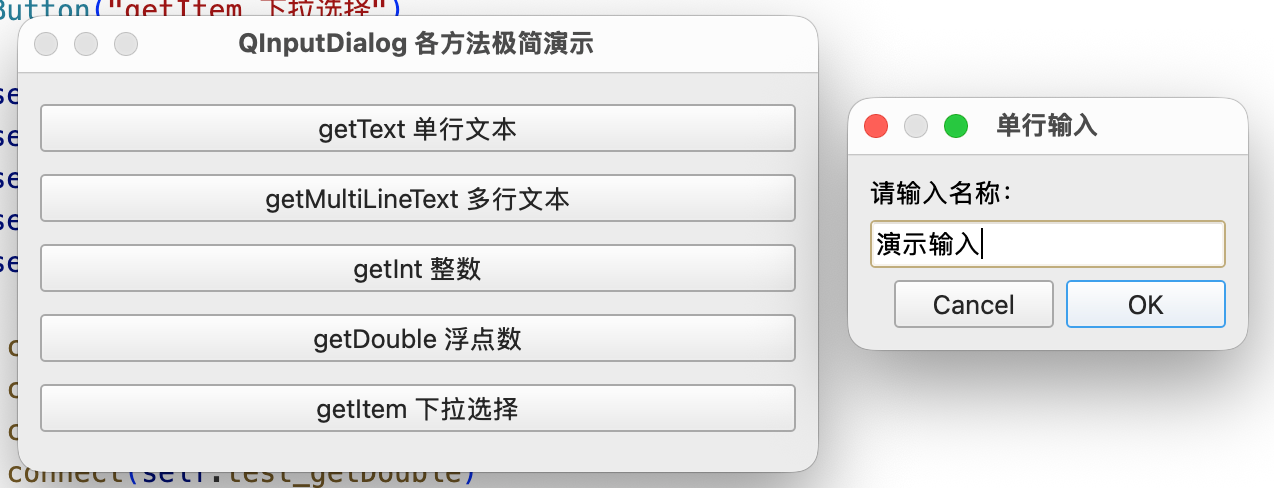
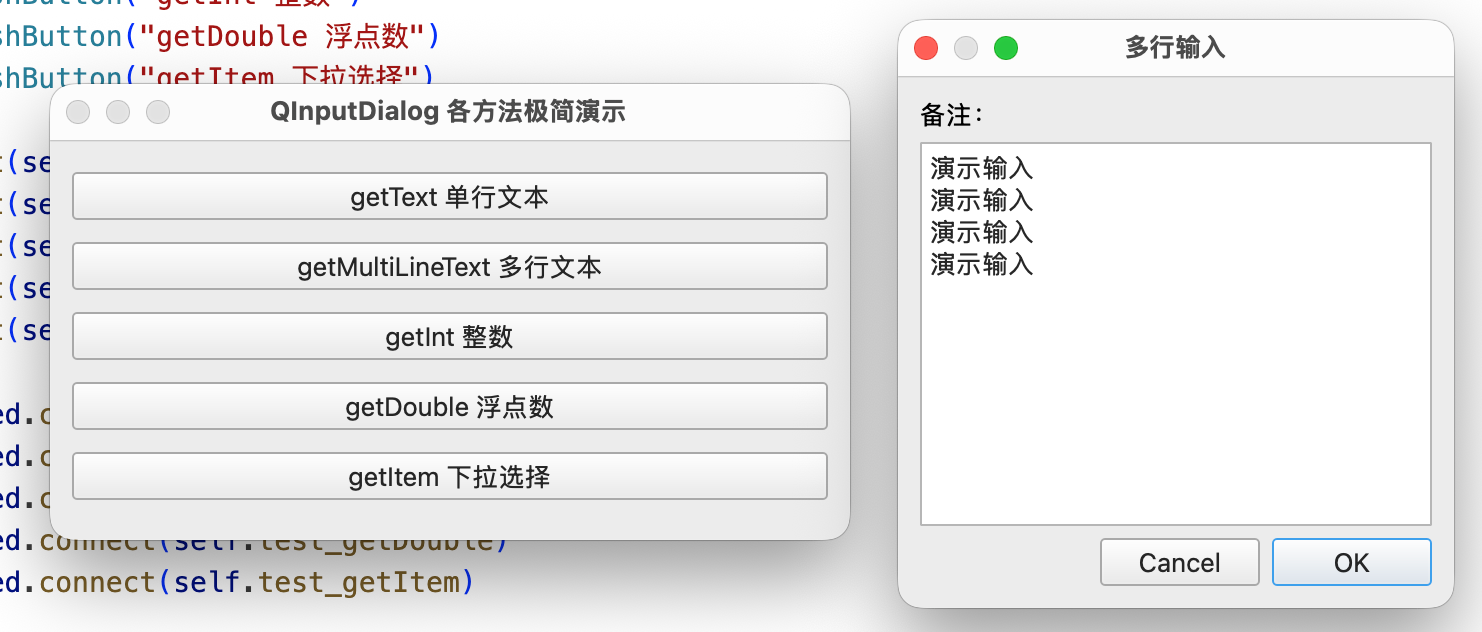
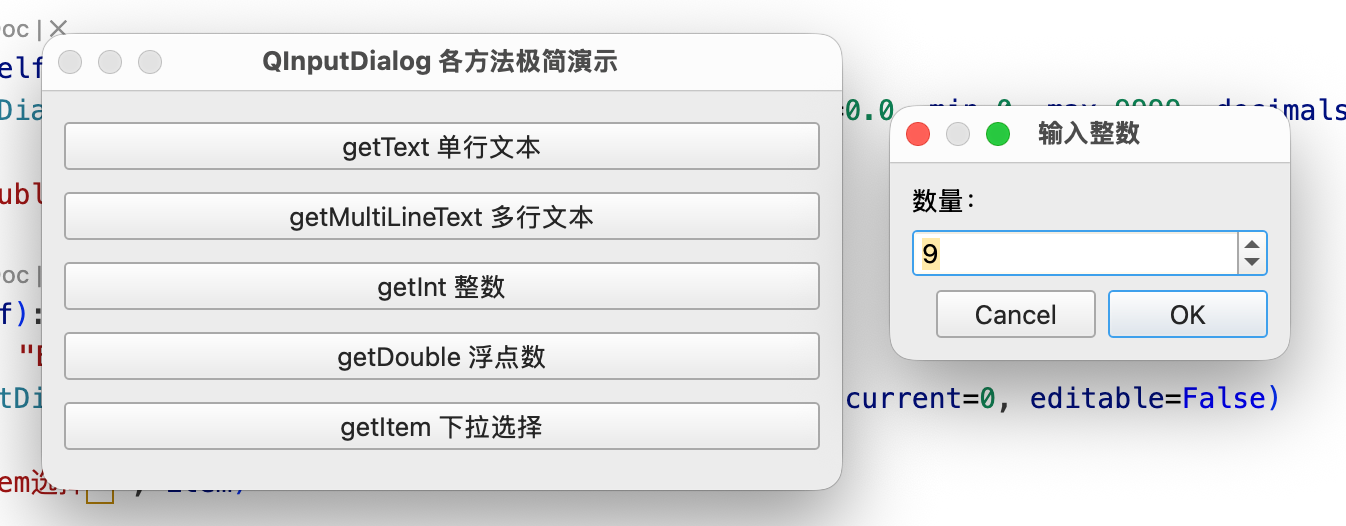
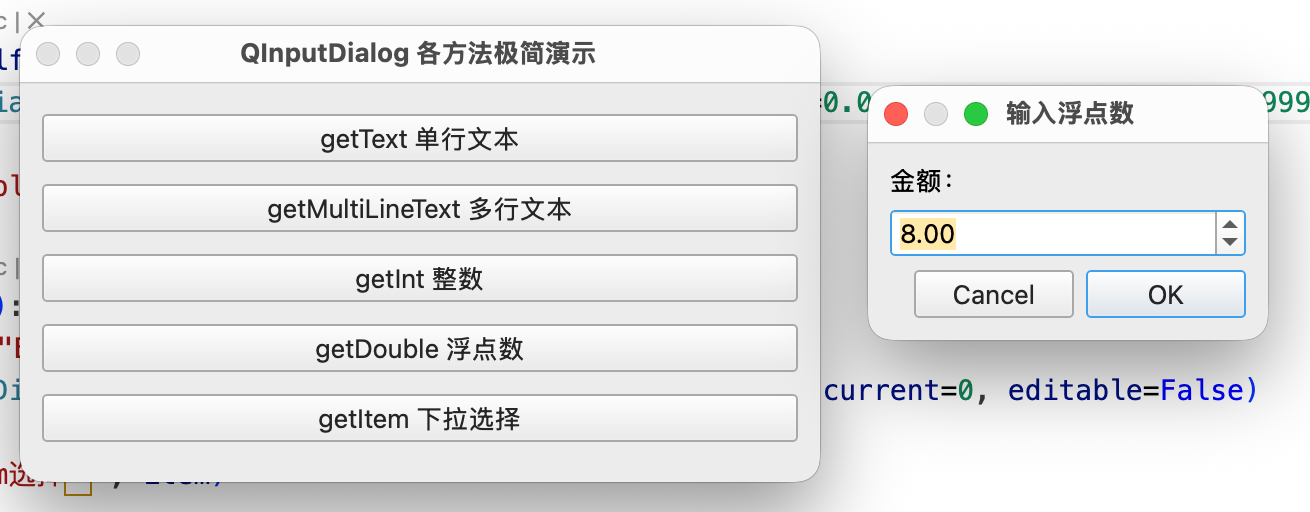
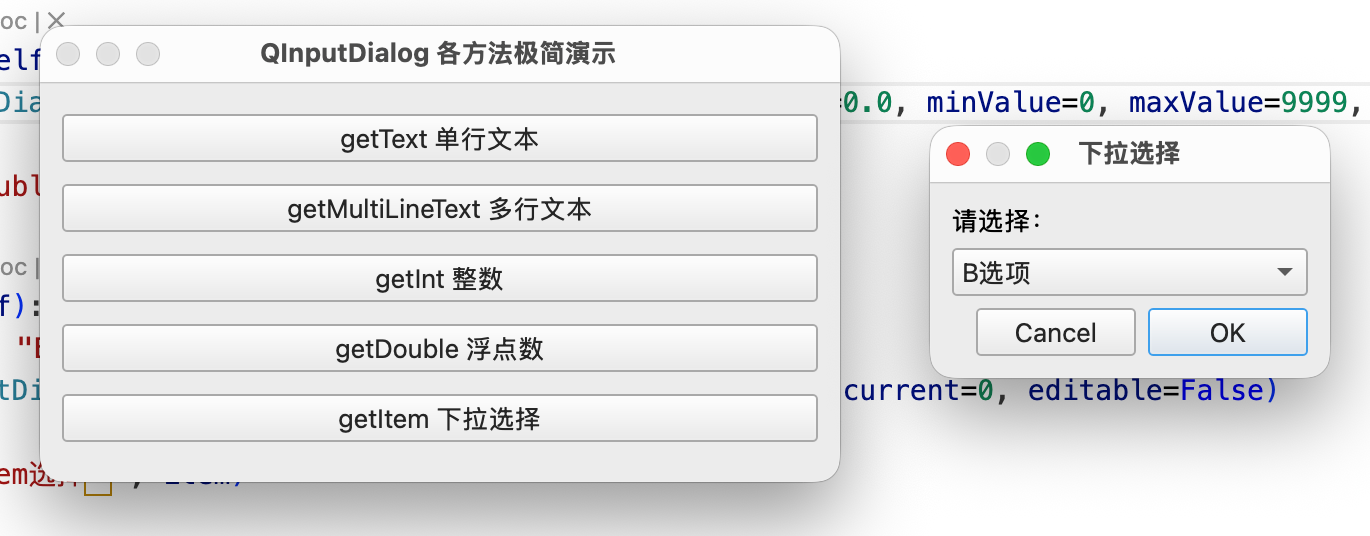
QInputDialog 用来向用户要一个值:一段文字、一个整数、一个浮点数、一个下拉选项,或一段多行文本,同样提供静态方法,调用后返回一个二元组,5 个静态取值方法如下:

  • getText():获取用户输入的文本
  • getInt():获取用户输入的整数
  • getDouble():获取用户输入的浮点数
  • getItem():获取用户选择的下拉选项
  • getMultiLineText():获取用户输入的多行文本输入
 1
 2
 3
 4
 5
 6
 7
 8
 9
10
11
12
13
14
15
16
17
18
19
20
21
22
23
24
25
26
27
28
29
30
31
32
33
34
35
36
37
38
39
40
41
42
43
44
45
46
47
48
49
50
51
52
53
54
55
56
57
58
59
60
61
62
63
import sys

from PySide6.QtWidgets import (QApplication, QWidget, QPushButton, QVBoxLayout,
                               QInputDialog, QLineEdit)


class InputDemo(QWidget):
    def __init__(self):
        super().__init__()
        self.setWindowTitle("QInputDialog 各方法极简演示")
        self.resize(400, 200)
        layout = QVBoxLayout(self)

        self.btn1 = QPushButton("getText 单行文本")
        self.btn2 = QPushButton("getMultiLineText 多行文本")
        self.btn3 = QPushButton("getInt 整数")
        self.btn4 = QPushButton("getDouble 浮点数")
        self.btn5 = QPushButton("getItem 下拉选择")

        layout.addWidget(self.btn1)
        layout.addWidget(self.btn2)
        layout.addWidget(self.btn3)
        layout.addWidget(self.btn4)
        layout.addWidget(self.btn5)

        self.btn1.clicked.connect(self.test_getText)
        self.btn2.clicked.connect(self.test_getMultiLineText)
        self.btn3.clicked.connect(self.test_getInt)
        self.btn4.clicked.connect(self.test_getDouble)
        self.btn5.clicked.connect(self.test_getItem)

    def test_getText(self):
        text, ok = QInputDialog.getText(self, "单行输入", "请输入名称:", QLineEdit.Normal, "默认文字")
        if ok:
            print("getText输入:", text)

    def test_getMultiLineText(self):
        text, ok = QInputDialog.getMultiLineText(self, "多行输入", "备注:", "这里可以写多行")
        if ok:
            print("getMultiLineText输入:", text)

    def test_getInt(self):
        num, ok = QInputDialog.getInt(self, "输入整数", "数量:", value=1, minValue=0, maxValue=999, step=1)
        if ok:
            print("getInt输入:", num)

    def test_getDouble(self):
        num, ok = QInputDialog.getDouble(self, "输入浮点数", "金额:", value=0.0, minValue=0, maxValue=9999, decimals=2)
        if ok:
            print("getDouble输入:", num)

    def test_getItem(self):
        items = ["A选项", "B选项", "C选项"]
        item, ok = QInputDialog.getItem(self, "下拉选择", "请选择:", items, current=0, editable=False)
        if ok:
            print("getItem选择:", item)


app = QApplication(sys.argv)
app.setStyle("Fusion") # Mac 适配,规避图标异常
window = InputDemo()
window.show()
sys.exit(app.exec())

演示效果如下:

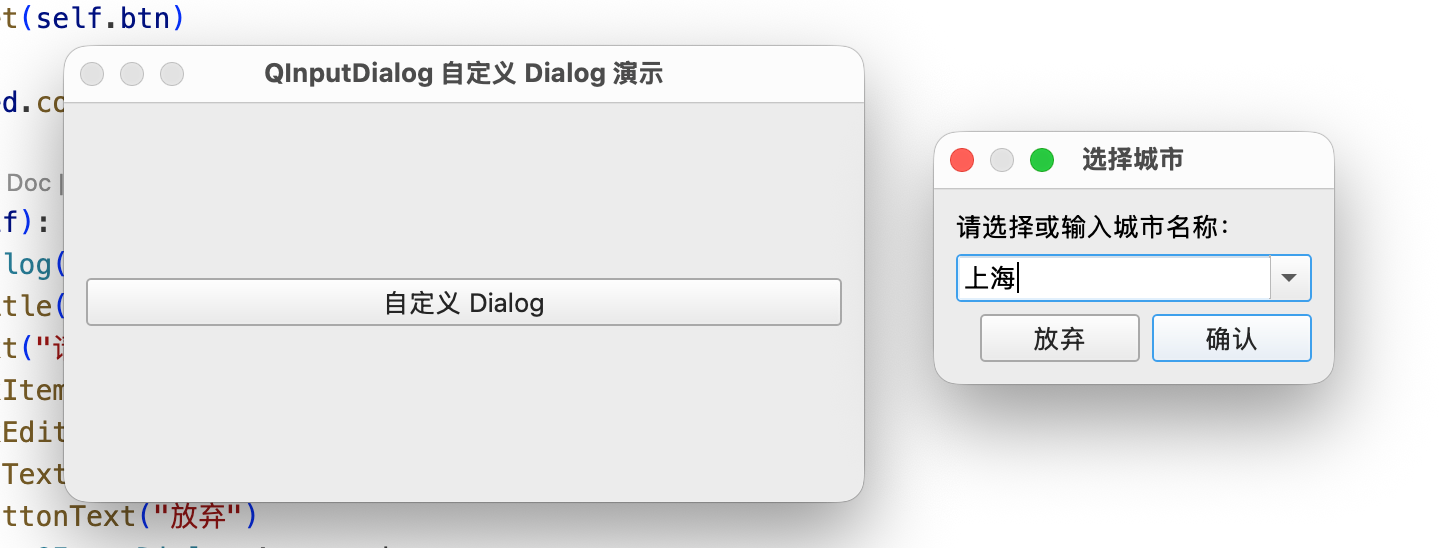
静态方法只覆盖常见形态,需要修改标签、开启可编辑下拉框、读取多个值时,用实例化写法:

 1
 2
 3
 4
 5
 6
 7
 8
 9
10
11
12
13
14
15
16
17
18
19
20
21
22
23
24
25
26
27
28
29
30
31
32
33
34
35
36
37
38
import sys

from PySide6.QtWidgets import (QApplication, QWidget, QPushButton, QVBoxLayout,
                               QInputDialog)


class InputDemo(QWidget):
    def __init__(self):
        super().__init__()
        self.setWindowTitle("QInputDialog 自定义 Dialog 演示")
        self.resize(400, 200)
        layout = QVBoxLayout(self)

        self.btn = QPushButton("自定义 Dialog")

        layout.addWidget(self.btn)

        self.btn.clicked.connect(self.init_dialog)

    def init_dialog(self):
        dlg = QInputDialog(self)
        dlg.setWindowTitle("选择城市")
        dlg.setLabelText("请选择或输入城市名称:")
        dlg.setComboBoxItems(["北京", "上海", "广州"])
        dlg.setComboBoxEditable(True)
        dlg.setOkButtonText("确认")
        dlg.setCancelButtonText("放弃")
        if dlg.exec() == QInputDialog.Accepted:
            print(dlg.textValue())
        else:
            print("用户取消")


app = QApplication(sys.argv)
app.setStyle("Fusion") # Mac 适配,规避图标异常
window = InputDemo()
window.show()
sys.exit(app.exec())

演示效果如下:

小结

QMessageBox 侧重信息提示与确认抉择,依靠按钮返回结果,适合告知、警告、确认类交互。QInputDialog 用来向用户获取输入数据,各类静态方法统一返回 (value, ok) 元组。使用二者都要判断用户操作结果,区分确认和取消分支,防止误执行业务逻辑。