承接上文
PySide6 按钮类控件(一):QPushButton、QRadioButton
,继续介绍 QCheckBox、QToolButton。
与 QRadioButton 相比,QCheckBox 是复选框,用于表达“多个选项中的一个或多个”,其核心特性是非互斥:同一时间可以有多个被选中。
而 QToolButton 和 QPushButton 长得像,但定位不同。QToolButton 专为工具栏、侧边栏、卡片角落这类空间受限、以图标为主的区域设计。默认外观更扁平、可以自动浮起、支持多种图文排布方式,还能把菜单挂在按钮上。
QCheckBox
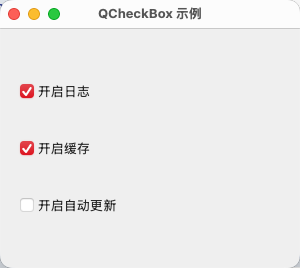
以下设置多个 QCheckBox 选项被选中的示例:
 1
 2
 3
 4
 5
 6
 7
 8
 9
10
11
12
13
14
15
16
17
18
19
20
21
22
23
24
25
26
27
28
29
30
31
32
| import sys
from PySide6.QtWidgets import QApplication, QWidget, QCheckBox, QVBoxLayout
from PySide6.QtCore import Slot
class CheckWindow(QWidget):
def __init__(self):
super().__init__()
self.setWindowTitle("QCheckBox 示例")
self.resize(300, 240)
layout = QVBoxLayout(self)
self.items = []
for name in ("开启日志", "开启缓存", "开启自动更新"):
cb = QCheckBox(name)
cb.toggled.connect(self.on_toggled)
self.items.append(cb)
layout.addWidget(cb)
@Slot(bool)
def on_toggled(self, checked):
sender = self.sender()
print(f"{sender.text()} -> {checked}")
picked = [cb.text() for cb in self.items if cb.isChecked()]
print("当前选中:", picked)
app = QApplication(sys.argv)
window = CheckWindow()
window.show()
sys.exit(app.exec())
|
演示效果如下:
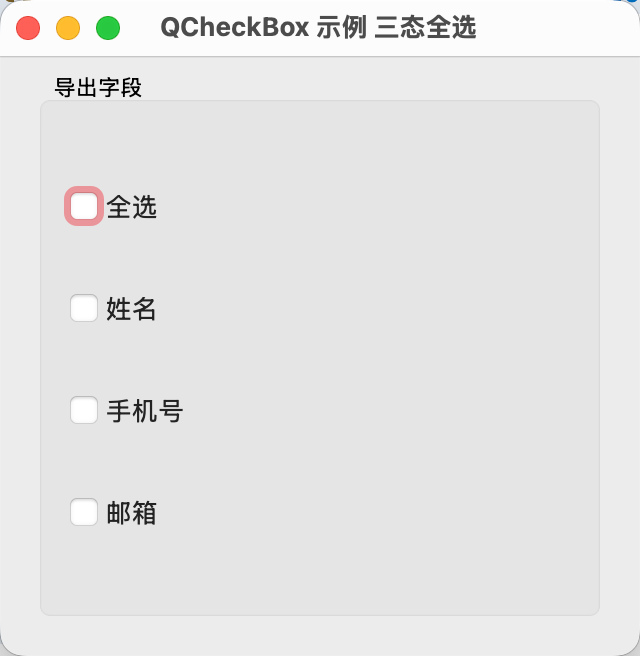
QCheckBox 另一个特性是支持三态:选中、未选中、半选中,其中半选中是指该选项包含子项且部分被选中,示例如下:
 1
 2
 3
 4
 5
 6
 7
 8
 9
10
11
12
13
14
15
16
17
18
19
20
21
22
23
24
25
26
27
28
29
30
31
32
33
34
35
36
37
38
39
40
41
42
43
44
45
46
47
48
49
50
51
52
53
54
55
56
57
58
59
| import sys
from PySide6.QtWidgets import (QApplication, QWidget, QCheckBox, QVBoxLayout,
QGroupBox)
from PySide6.QtCore import Qt, Slot
class TriStateWindow(QWidget):
def __init__(self):
super().__init__()
self.setWindowTitle("QCheckBox 示例 三态全选")
self.resize(320, 300)
root = QVBoxLayout(self)
box = QGroupBox("导出字段")
box_layout = QVBoxLayout(box)
root.addWidget(box)
self.parent_cb = QCheckBox("全选")
self.parent_cb.setTristate(True)
self.parent_cb.setCheckState(Qt.CheckState.Unchecked)
self.parent_cb.stateChanged.connect(self.on_parent_changed)
box_layout.addWidget(self.parent_cb)
self.children = []
for name in ("姓名", "手机号", "邮箱"):
cb = QCheckBox(name)
cb.toggled.connect(self.on_child_changed)
self.children.append(cb)
box_layout.addWidget(cb)
@Slot(int)
def on_parent_changed(self, state):
if state == Qt.CheckState.PartiallyChecked.value:
return
checked = state == Qt.CheckState.Checked.value
for cb in self.children:
cb.blockSignals(True)
cb.setChecked(checked)
cb.blockSignals(False)
@Slot(bool)
def on_child_changed(self, _checked):
picked = sum(cb.isChecked() for cb in self.children)
total = len(self.children)
self.parent_cb.blockSignals(True)
if picked == 0:
self.parent_cb.setCheckState(Qt.CheckState.Unchecked)
elif picked == total:
self.parent_cb.setCheckState(Qt.CheckState.Checked)
else:
self.parent_cb.setCheckState(Qt.CheckState.PartiallyChecked)
self.parent_cb.blockSignals(False)
app = QApplication(sys.argv)
window = TriStateWindow()
window.show()
sys.exit(app.exec())
|
演示效果如下:
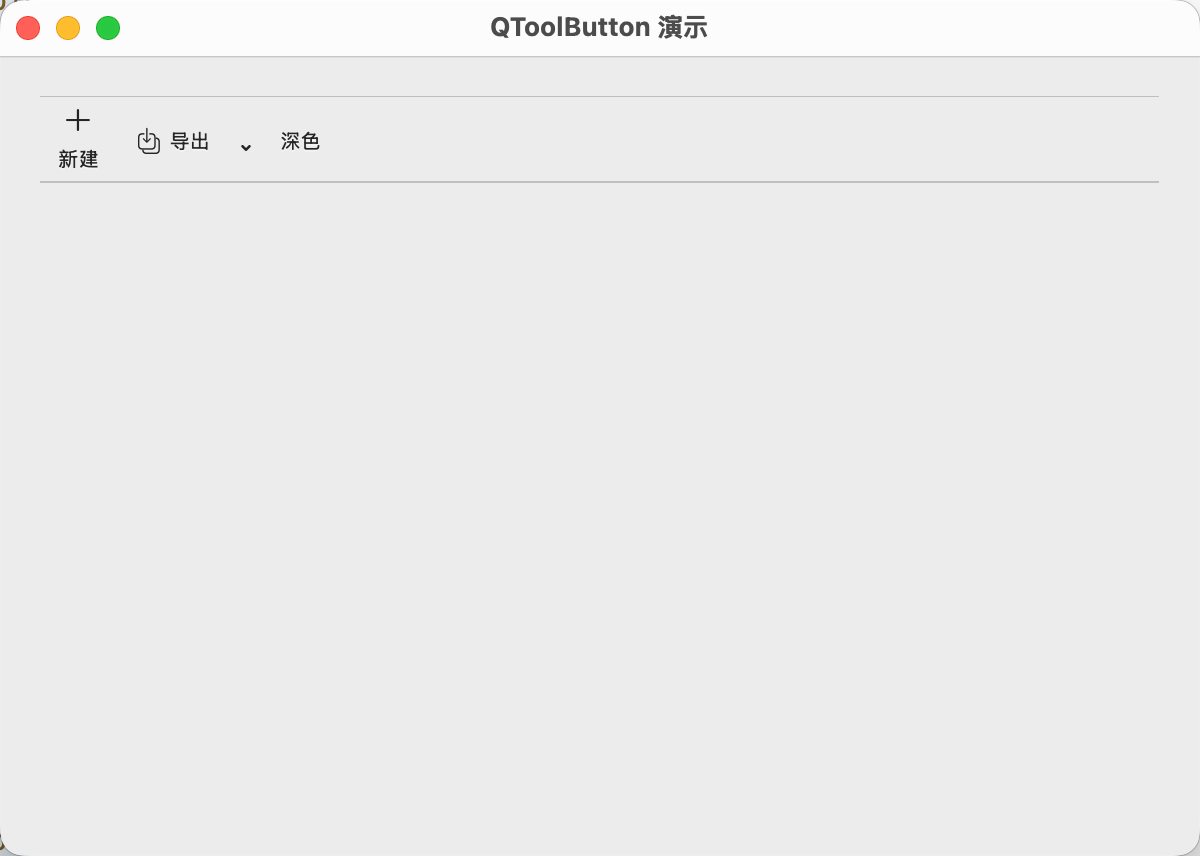
下一个示例演示了 QToolButton 三种常见形态:图文竖排的主入口、带下拉箭头的菜单按钮、可切换状态的开关按钮。
 1
 2
 3
 4
 5
 6
 7
 8
 9
10
11
12
13
14
15
16
17
18
19
20
21
22
23
24
25
26
27
28
29
30
31
32
33
34
35
36
37
38
39
40
41
42
43
44
45
46
47
48
49
50
51
52
53
54
55
56
57
58
59
60
61
62
63
64
65
66
67
68
69
70
71
72
73
| import sys
from PySide6.QtWidgets import (QApplication, QWidget, QToolBar, QToolButton,
QVBoxLayout, QMenu)
from PySide6.QtGui import QIcon
from PySide6.QtCore import Qt, QSize, Slot
class ToolWindow(QWidget):
def __init__(self):
super().__init__()
self.setWindowTitle("QToolButton 演示")
self.resize(600, 400)
layout = QVBoxLayout(self)
bar = QToolBar(self)
bar.setIconSize(QSize(16, 16))
layout.addWidget(bar)
self.new_btn = QToolButton(bar)
self.new_btn.setText("新建")
self.new_btn.setIcon(QIcon.fromTheme("document-new"))
self.new_btn.setToolButtonStyle(Qt.ToolButtonStyle.ToolButtonTextUnderIcon)
self.new_btn.setToolTip("新建文件")
self.new_btn.clicked.connect(self.on_new)
bar.addWidget(self.new_btn)
export_btn = QToolButton(bar)
export_btn.setText("导出")
export_btn.setIcon(QIcon.fromTheme("document-save-as"))
export_btn.setToolButtonStyle(Qt.ToolButtonStyle.ToolButtonTextBesideIcon)
export_btn.setPopupMode(QToolButton.ToolButtonPopupMode.MenuButtonPopup)
menu = QMenu(export_btn)
menu.addAction("导出为 CSV", self.on_csv)
menu.addAction("导出为 JSON", self.on_json)
export_btn.setMenu(menu)
export_btn.clicked.connect(self.on_export_default)
bar.addWidget(export_btn)
self.dark_btn = QToolButton(bar)
self.dark_btn.setText("深色")
self.dark_btn.setCheckable(True)
self.dark_btn.setToolTip("切换深色模式")
self.dark_btn.toggled.connect(self.on_dark)
bar.addWidget(self.dark_btn)
layout.addStretch(1)
@Slot()
def on_new(self):
print("新建")
@Slot()
def on_csv(self):
print("导出 CSV")
@Slot()
def on_json(self):
print("导出 JSON")
@Slot()
def on_export_default(self):
print("执行默认导出")
@Slot(bool)
def on_dark(self, checked):
print(f"深色模式:{checked}")
app = QApplication(sys.argv)
window = ToolWindow()
window.show()
sys.exit(app.exec())
|
演示效果如下:
小结
- QCheckBox 承担“可多选、可全不选”的语义;需要互斥答案时请回到 QRadioButton;
- 三态是 QCheckBox 最容易被误用的特性:读取用 checkState(),监听用 stateChanged(int),设置用 setCheckState();
- 父子联动必须做两件事:父项收到 PartiallyChecked 时直接返回,批量改子项前 blockSignals;
- QToolButton 的价值在于排布与形态:
- toolButtonStyle 解决图文关系
- autoRaise 解决空间
- popupMode 解决菜单与主动作共存